
How to change folder icons and colors on a Mac
Change a folder's icon or color on a Mac: Customize Folder on macOS 26 Tahoe, a pasted image on any version, the Preview trick, and how to undo it.
On macOS 26 Tahoe, Control-click a folder and choose Customize Folder to give it a color, a symbol or an emoji. On any version of macOS, you can paste any image as a folder’s icon: copy the image, select the folder, press ⌘I, click the small icon at the top left of the Info window, and press ⌘V. Press Delete there to go back to the default icon.
1. Customize Folder (macOS 26 Tahoe)
- Control-click the folder in Finder or on the Desktop.
- Choose Customize Folder.
- Pick a color for the folder, then either a symbol (it looks embossed on the folder) or an emoji.
The change syncs to your iPhone and iPad through iCloud. It works on your own folders, not on Applications, Library, System or Users.
2. Paste any image as the icon (every version)
This is the classic method, and it works for folders, files and apps.
- Open the image you want in Preview. A PNG with a transparent background looks best.
- Press ⌘A to select all, then ⌘C to copy.
- In Finder, select the folder and press ⌘I (Get Info).
- Click the small icon at the top left of the Info window. It gets a blue outline.
- Press ⌘V.
To copy the icon of another folder or app instead, open Get Info on it, click its small icon and press ⌘C, then paste as in step 5.
To undo it, open Get Info again, click the small icon and press Delete.
3. Change a folder’s color on older versions
Before Tahoe, macOS had no color setting for folders. The workaround goes through Preview:
- Select the folder, press ⌘I, click the small icon at the top left and press ⌘C.
- Open Preview and choose File > New from Clipboard.
- Choose Tools > Adjust Color and move the Tint and Temperature sliders until the folder has the color you want.
- Press ⌘A, then ⌘C.
- Back in the folder’s Info window, click the small icon and press ⌘V.
A lighter option is a color tag: Control-click the folder and click a color. It adds a dot next to the name, and clicking the tag in the Finder sidebar lists everything with that color.
Where to find folder icons
- SF Symbols, Apple’s free app of symbols, exports any symbol as an image you can paste onto a folder.
- Emoji: on Tahoe, Customize Folder takes any emoji directly.
- Icon sets for macOS folders are shared on sites such as macOSicons.com. Download PNG or ICNS files, open them in Preview and paste them as above.
Keep one style across a set of folders: the same color for everything about work, the same symbol for every archive. A consistent set is faster to scan than a rainbow.
Where the manual method stops
A custom icon is set one folder at a time, by hand. It helps when you have five folders you open every day. It doesn’t help with a Downloads folder of 600 loose files: the icons are only useful once the files are in folders.
Folders with their own icons, created for you
DeclutrDeclutr sorts the Desktop, Downloads or any folder into category folders by file type: Documents, Images, Videos, Audio, Archives, Apps, Code & Scripts, 3D Models and more. Each category folder gets its own icon, so you can tell them apart at a glance in Finder, without setting a single icon by hand.
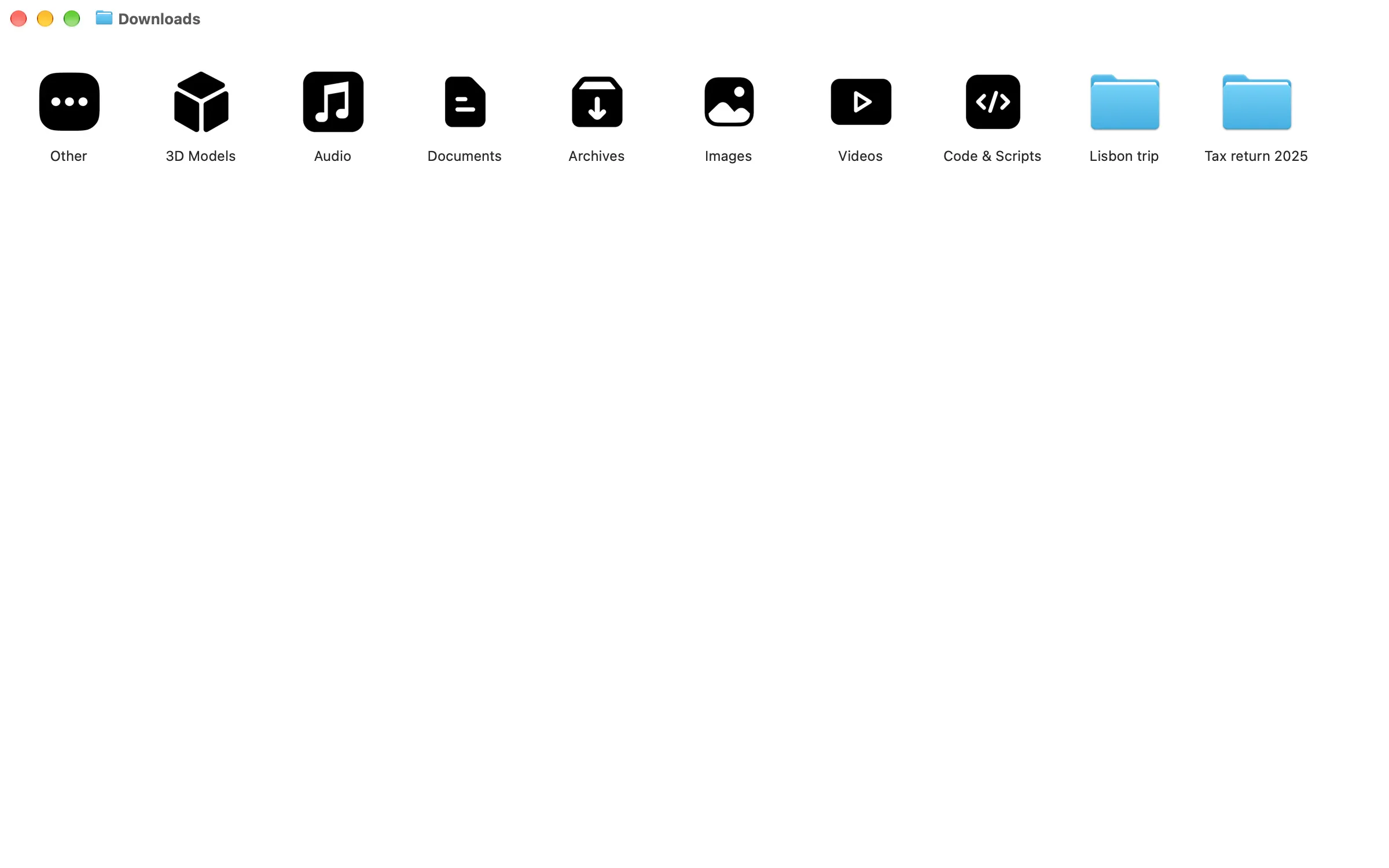
One Undo button puts every file back where it was. The sort is free; Pro, a one-time $8.99 purchase in the US, adds watched folders, scheduled cleanups and rules by name, extension, age or size. It needs macOS 13 Ventura or later.
Related: how to create a folder on a Mac and how to organize files on a Mac.
Questions people ask
How do I change a folder icon on a Mac?
Copy an image (open it in Preview, press Command-A, then Command-C). Select the folder, press Command-I to open Get Info, click the small icon at the top left of the Info window and press Command-V. On macOS 26 Tahoe you can also Control-click the folder and choose Customize Folder.
Can you change folder colors on a Mac?
On macOS 26 Tahoe, yes: Control-click the folder, choose Customize Folder and pick a color. On older versions, copy the folder's icon from Get Info, paste it into Preview, tint it with Tools > Adjust Color, then copy it and paste it back onto the folder's icon in Get Info.
How do I change a folder icon back to the default on a Mac?
Select the folder, press Command-I, click the small icon at the top left of the Info window and press Delete. The folder goes back to the standard blue icon.
Why can't I change a folder icon on my Mac?
System folders such as Applications, Library, System and Users are protected and keep their icon. For your own folders, check that the folder isn't locked (Get Info > Locked) and that you have write permission (Get Info > Sharing & Permissions).