
How to organize files on a Mac: a folder system that holds up
Set up a folder structure on your Mac that stays tidy, then use Finder's own tools to stop your Desktop and Downloads folders from filling up again.
Keep what you want to keep in a handful of folders inside Documents, sorted by area of your life rather than by file type. Start the names of files you keep with the date. Treat Desktop and Downloads as inboxes you empty every week. By hand in Finder, the first pass takes about an hour; DeclutrDeclutr does the sorting part in one click.
1. Decide where files live
Your home folder already has the right top level: Desktop, Documents, Downloads, Pictures, Movies, Music. Anything you mean to keep goes to Documents.
Inside Documents, create five to eight folders named after the areas of your life or work. A PDF invoice and a Numbers sheet of expenses both go under Admin. For example:
Documents/
  Admin/        taxes, bank, insurance, ID scans
  Home/         lease, appliances, car
  Work/
    Clients/
    Invoices/
  Projects/     one folder per project
  Archive/
    2025/
Three rules keep it working:
- No more than three levels deep. Past that, you stop filing and drop things wherever they fit.
- One Archive folder, split by year. When a project ends, move its folder to
Archive/2026. - No folder called “Misc”. A file that fits nowhere means a folder is missing, or the file is not worth keeping.
2. Name files so they sort themselves
Start every file you keep with the date, year first: 2026-09-22 Lease renewal.pdf. Sorted by name, the files are now sorted by date, in Finder, in an email and on a USB drive.
To rename a batch, select the files, Control-click and choose Rename. Replace Text swaps one word in every name, Add Text adds a prefix, and Format renames everything to a name plus a counter or the date.
3. Move files in bulk
You won’t sort a 400-file folder one file at a time. Three Finder features do most of the work:
- Group by kind. Choose View > Use Groups (⌃⌘0), then View > Group By > Kind. Every PDF lands together, every image together, and you can select a whole group in two clicks.
- New Folder with Selection. Select files, Control-click and choose New Folder with Selection (⌃⌘N). Finder creates the folder and moves the files into it.
- Cut and paste. Press ⌘C, then ⌥⌘V in the destination: Finder moves the files instead of copying them.
4. Tags and Smart Folders, to find without filing
A contract for a client is both Work and Admin. Keep one copy in one folder and give it a tag (Control-click, pick a color). Clicking the tag in the Finder sidebar lists its files wherever they are.
A Smart Folder is a saved search. Choose File > New Smart Folder (⌥⌘N), click +, and set rules such as “Kind is PDF” and “Last opened date is within last 30 days”. Save it to the sidebar. It updates live and moves nothing (more on Smart Folders). Two worth keeping: every PDF opened this month, and every file over 1 GB.
5. Keep Desktop and Downloads from filling up again
Most mess on a Mac comes from two folders that fill on their own.
- Screenshots land on the Desktop by default. Press ⇧⌘5, click Options, and under Save to choose Other Location, for example
Pictures/Screenshots. - Stacks pile the Desktop by kind: Control-click the Desktop and choose Use Stacks. The files stay on the Desktop, only hidden in piles.
- Downloads is easiest to empty sorted by Date Added (list view). Once a week, file what you need and trash the rest.
Sorting new files automatically
macOS can move files as they arrive, if you build each rule yourself:
- macOS 26 Tahoe: in Shortcuts, click Automation, then +, and pick the Folder trigger on Downloads, when files are added. In the shortcut, loop over the new files with Repeat with Each, filter by extension, and Move File to the folder you want.
- Older versions: in Automator, create a Folder Action on the folder and chain Filter Finder Items (extension is
pdf) with Move Finder Items.
Where the free method stops
All of this is free. It has three limits:
- The first cleanup is manual. Moving 400 files by hand takes an evening, and it is easy to stop halfway.
- Automations are built one rule at a time. Each file type needs its own filter and destination, and you test each one yourself.
- There is no undo. A shortcut that sends 300 files to the wrong folder leaves you to find them again.
The one-click version
DeclutrDeclutr is a Mac app that sorts a folder (Desktop, Downloads or any other) into category folders by file type: Documents, Images, Videos, Audio, Archives, Code & Scripts, 3D Models and more. It runs on your Mac, never uploads a file, and one Undo button puts every file back where it was.
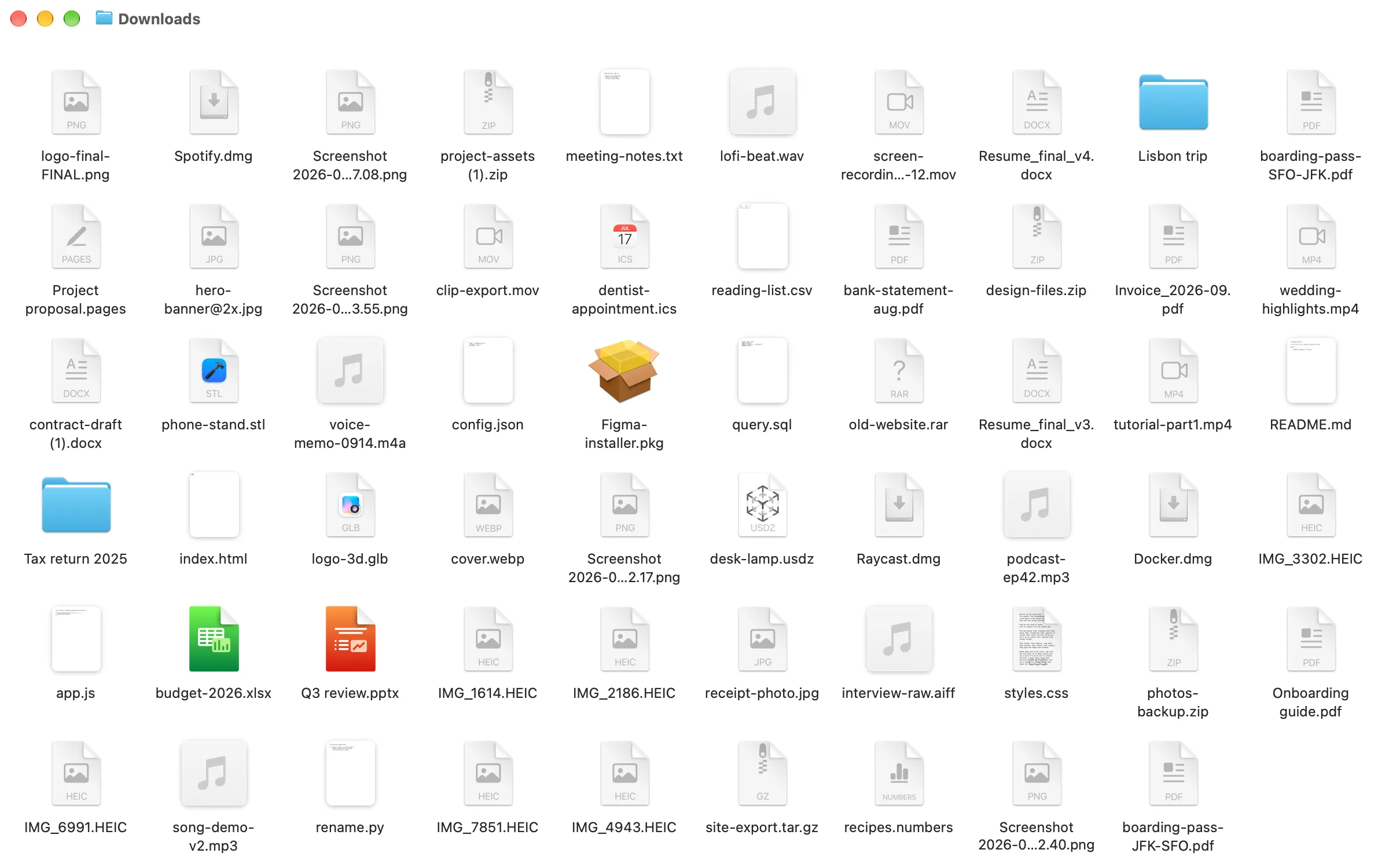
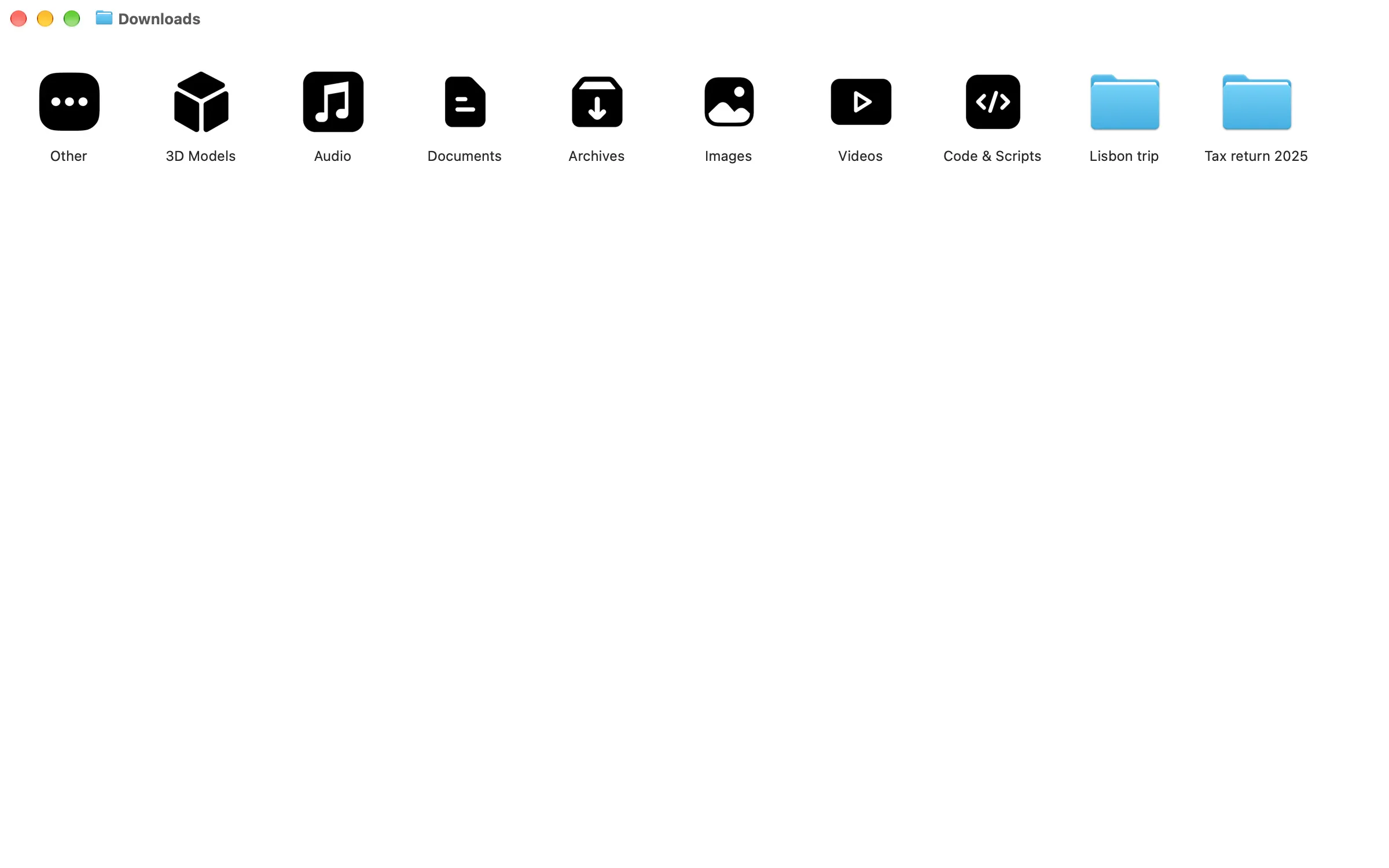
The sort is free. Pro, a one-time $8.99 purchase in the US, adds watched folders, scheduled cleanups and rules by name, extension, age or size, which replace the Shortcuts and Automator steps above.
What it does not do: it sorts by file type and by your rules, not by what is inside a file, and it does not use AI. It will not design your Documents structure from step 1 for you. It needs macOS 13 Ventura or later.
Related: how to organize your Mac desktop, and the best file organizer apps for Mac, compared.
Questions people ask
How do I automatically arrange files on my Mac?
To keep a window tidy, open View > Show View Options and pick a Sort By order; Finder then keeps the icons in that order. To move files into folders automatically, Declutr Pro watches a folder and sorts each new file as it lands. By hand, a Shortcuts automation with a Folder trigger does it on macOS 26 Tahoe, and a Folder Action in Automator on older versions, one rule at a time.
Why can't I rearrange my folders on Mac?
The window has a sort order set, so Finder puts every icon back in place. In icon view, open View > Show View Options and set Sort By to None; you can then drag icons anywhere. On the Desktop, turn off Use Stacks first. List view is always sorted by a column.
How do I organize files on a Mac by date?
In list view, add the Date Added column (View > Show View Options) and click its header. For documents you keep, start the file name with the date as 2026-09-22: sorting by name then sorts by date, in every app and on every drive.
What is a good Mac app for organizing files?
Declutr: it sorts a messy folder into category folders by file type in one click, and one Undo button puts everything back. The sort is free, and Pro adds rules and watched folders for $8.99 once. Hazel ($42) suits people who want to write complex rules. Finder can do the job by hand, one group of files at a time.