
How to select multiple files on a Mac
Command-click picks files one by one, Shift-click a range, Command-A everything. Plus selecting by type or date, and a free shortcut sheet to print.
In Finder, hold ⌘ and click each file you want. To take a whole run of files, click the first one, hold ⇧ and click the last one. To take everything in the window, press ⌘A. Then drag the selection, or Control-click it to move, tag or compress all the files at once.
The rest of this page is the part people miss: how to select by type or by date without clicking 200 times, and a one-page sheet of every selection shortcut to keep next to the keyboard.
The four ways to select
| You want | Do this |
|---|---|
| A few files, anywhere in the window | ⌘-click each one |
| A run of files next to each other | Click the first, ⇧-click the last |
| Everything in the window | ⌘A |
| A block of icons | Click on empty space near the first icon and drag a rectangle over the others |
Two details that save a lot of re-clicking:
- ⌘-click a selected file to drop it from the selection. Select everything with ⌘A, then ⌘-click the three files you want to keep out.
- Mix the two. ⇧-click a range, then ⌘-click to add files from elsewhere in the list.
Select by type: sort or group first
Finder has no “select all PDFs” command. You get the same result by putting all the PDFs next to each other, then selecting them as a range.
- Switch to list view: ⌘2.
- Click the Kind column header to sort by type. If the column isn’t there, press ⌘J and tick Kind.
- Click the first PDF, ⇧-click the last one.
Grouping works too, and it shows each type under its own heading: click the Group button in the Finder toolbar and choose Kind. Each group starts with a header; click the first file of the group and ⇧-click its last file.
The same trick selects by date. Sort by Date Added (add the column with ⌘J if needed) and every file from last week sits in one block. In Downloads, Date Added is the day the file arrived, which is usually the date you care about.
Select from a search
To select files that are spread across folders, search first. Press ⌘F in a Finder window, set the search to This Mac or the current folder, and add a rule such as Kind is PDF. The results are one list, so ⌘A selects every match. Save the search as a Smart Folder if you’ll need it again.
What to do with a selection
Once the files are selected, Control-click any of them. The menu acts on all of them at once:
- New Folder with Selection (⌃⌘N) creates a folder and moves the files into it. The fastest way to file a batch.
- Rename renames the whole batch: replace a word, add a prefix, or number them (how to rename files on a Mac).
- Compress puts them in one
.zip. - Tags: click a color to tag every file.
- Move to Trash (⌘⌫).
To move a selection without copying it, press ⌘C, open the destination, and press ⌥⌘V.
Where selecting by hand stops
Sort-then-⇧-click works for one type at a time. A Downloads folder with 400 files of 15 kinds means 15 rounds of sort, select, new folder, name it. Miss-click once in the middle of a range and you start over. It’s fine once; it’s tedious every week.
The one-click version
DeclutrDeclutr sorts a folder by file type in one click: Documents, Images, Videos, Audio, Archives, Apps and more, each in its own folder, with one Undo button for the whole sort. The sort is free; Pro, a one-time $8.99 purchase in the US, adds rules and a folder it keeps sorted on its own.
It does not replace selecting for a one-off job (picking six photos to send), and it does not look inside files. It needs macOS 13 Ventura or later.
Download the shortcut sheet
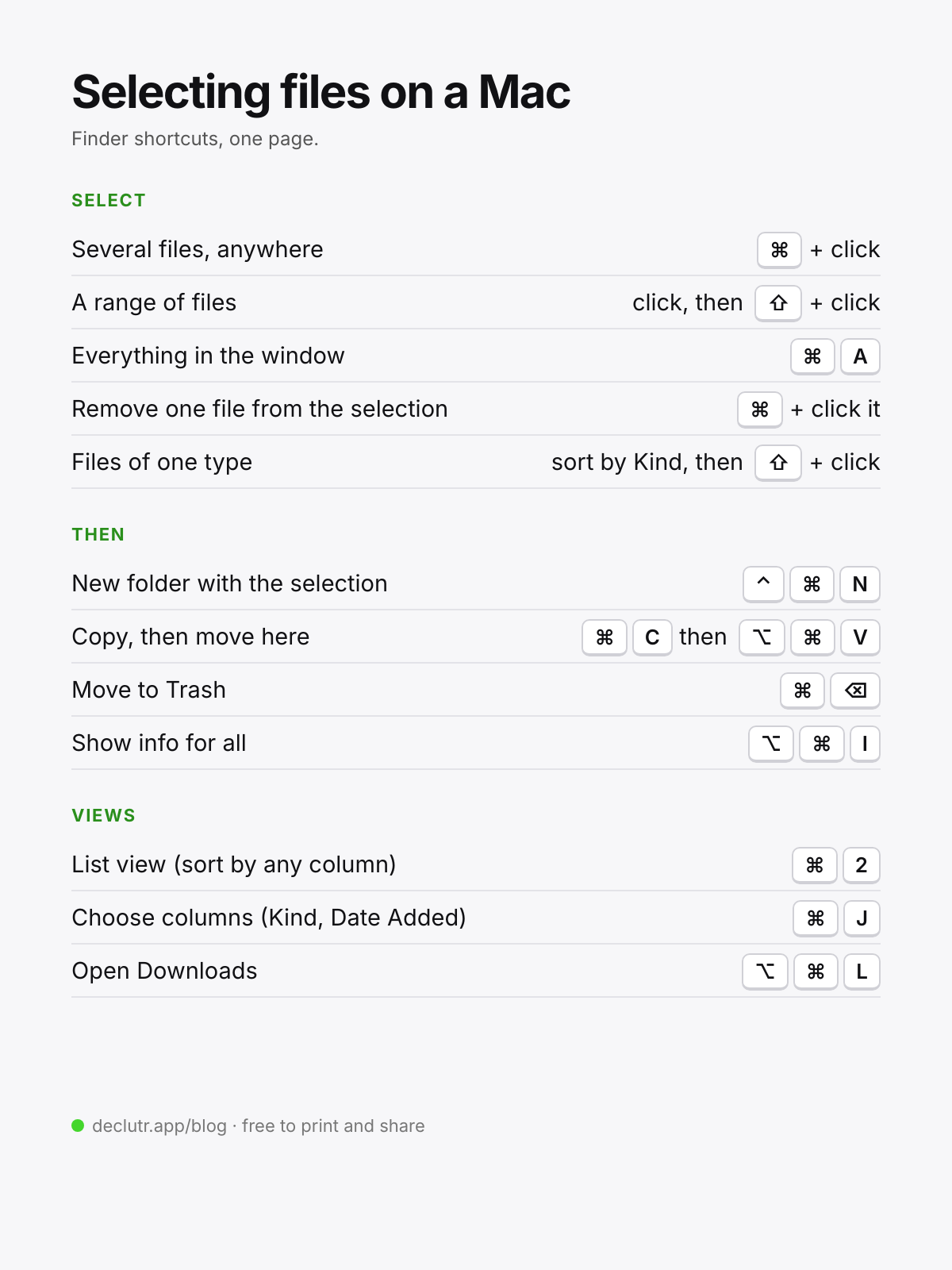
A one-page sheet of every selection and filing shortcut on this page, to print or keep on the Desktop: mac-selection-shortcuts.png (free, share it as you like).
Next step for the files you just selected: a folder system that holds up.
Questions people ask
How do I select multiple files that are not next to each other on a Mac?
Hold the Command key and click each file. Command-click a selected file again to remove it from the selection.
How do I select a range of files on a Mac?
Click the first file, hold Shift, then click the last one. Every file in between is selected. It works best in list view, where the order is clear.
How do I select all files in a folder on a Mac?
Click inside the Finder window and press Command-A. To select all files of one type only, sort or group the window by Kind first, then Shift-click the first and last file of that group.
How do I select multiple downloads on a Mac?
Open Downloads in Finder with Option-Command-L, switch to list view with Command-2, then Shift-click or Command-click the files. Sorting by Date Added first puts the newest downloads together.